


What Is A Word Cloud?
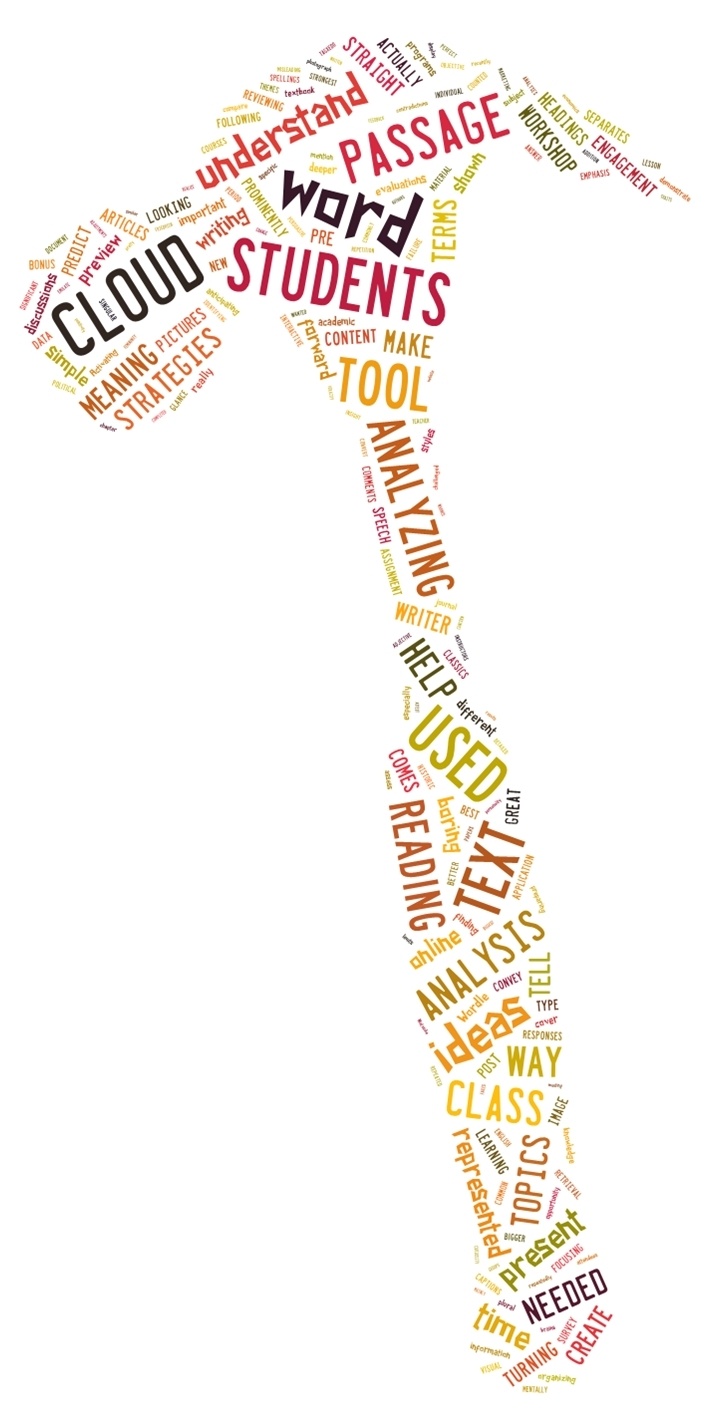
A word cloud is a visual display of words, shown in different sizes to form a "cloud." Educators use word clouds to highlight individual words based on how often they appear. Larger and bolder words indicate higher frequency, showing their importance. Word clouds are easy to read and understand. They are created from data related to lessons and students. For example, in a geography class, the word cloud will include words and phrases specific to that subject, showing their frequency as needed. This tool helps assess a student's understanding of topics taught and is especially useful for visual learners who may find large blocks of text hard to grasp.
How To Use The 8 Best Free Word Cloud Creation Tools For Teachers
1. ABCYa! Word Clouds
ABCYa! Word Clouds is a simple and fun word cloud generator designed for younger students.
How To Use
- Click the link above to go to ABCYa! 's Word Cloud creation tool.
- Copy and paste, or type the text that you would like to use into the box underneath the heading that reads "type or paste text."
- Next, click the arrow icon towards the bottom right of the screen. ABCYa! will generate a word cloud with a random layout.
- You can manipulate this layout by using the slider bar at the bottom to adjust the word list used or using the toolbar at the top of the word cloud. The toolbar allows you to change aspects of the cloud, like font style, color, and the layout of your text.
- When you have created your cloud, click either the "save" or "print" buttons on the bottom left of the screen.
- You can share your cloud with friends or create a new one.
2. TagCrowd
TagCrowd is a simple word cloud generator that requires no sign-up and creates word clouds that look clean, organized, and professional.
How To Use
- Get started with TagCrowd by clicking the link above to visit the site.
- Once there, decide whether you'd like to paste the text you'll be using for your word cloud, provide a URL, or upload a file.
- After making this decision, click the corresponding tab.
- Copy and paste your text or URL, or upload your file, then scroll down and adjust your options.
- Select the language of the text, the list of words you want to display, the minimum frequency for words to show, and any words you want to exclude. Additionally, decide whether you want to display the frequency of each word and whether you want to group similar words together.
- After you have done all of this, click the white "Visualize!" tab. TagCrowd will now generate your complete word cloud from the provided data.
- Click "Save as…" and decide whether you would like to embed your word cloud on a website, print it, or convert it to a PDF.
- After this, you can start another word cloud or use yours in the classroom.
3. Word Art
Word Art is a highly customizable word cloud generator that allows users to create unique word clouds from text, URLs, or a list of tags.
How To Use
- Click the Word Art link above and go to the site.
- Find the blue "Sign up" link on the left side of the page and click it. Enter the required data and then click the gray "Sign up" button.
- Now check the inbox of the email you provided, find the message from Word Art, and click the link included in the message.
- You will be redirected to a page that contains a blue hyperlink that reads "Create new cloud." Click this link.
- You can now begin creating your word list. Choose a tag source from one of the tabs under the green "Tag source" heading. Your options are: "Get tags from URL," "Get tags from text," and "List of tags."
- Enter your URL, text, or tags; determine the case of your text; change the stemming algorithm if necessary; and decide if you would like to filter any common words.
- You can now change the appearance, fonts, and colors of your cloud. Make these changes if you desire, then click the big blue "Save changes" button.
- Once you have finished altering the appearance of your cloud, save the image to your computer, put it on a web page, or send a link to a friend.
4. Tagxedo
Tagxedo (pronounced as "tag-SEE-doh," similar to "tuxedo," a stylish formal attire) is a great free word cloud generator that turns words—such as famous speeches, news articles, slogans, and themes—into a visually stunning word cloud.
How To Use
- Click the Tagxedo link above and go to the site.
- Click "Create" and start playing with it! Press the "Load" button and either enter a web page or paste text.
- After this, you can experiment with the shapes, themes, and fonts. You can also change "Orientation" (horizontal, vertical, or H/V).
- Once you've selected your themes, colors, and the direction of your word list, you have many saving options (smaller or larger images).
- You can finally print your word cloud.
5. Tricklar
Tricklar is a cloud generator that uses high-quality media sources from around the world to form the basis of all word clouds.
How To Use
- The most distinctive feature of Tricklar's cloud generator is its ability to incorporate a fourth dimension—time—into the word cloud.
- You don't need to provide an email or register to access the news database and create a cloud in Tricklar. Simply run the cloud generator and customize the cloud's appearance to suit your preferences.
- Click the Tricklar link above to visit the site.
- You can select the time, location, and topic to generate your cloud, allowing you to view the most relevant results based on your country's perspective.
- Choose between a general category overview or keyword analysis to refine the data for your desired outputs.
- Additionally, you can customize the font, color, and shape of the word cloud using the cloud appearance menu to create a word list that meets your needs.
6. WordClouds
WordClouds is a free word cloud generator that can be used with any modern browser on a desktop, tablet, or smartphone.
How To Use
- Click the WordClouds link above and go to the site.
- Go to the "File" button and upload an Office document or PDF, open a URL, paste text (via the File dropdown), or edit the word list (dropdown) to enter the words and frequency for your own word cloud.
- Choose the size, shape, flatness, theme, colors, and font of your word cloud.
- You can also add links to your words to improve the data.
- In the word list, you can enter a URL after each word; the word then becomes clickable and points to the given URL.
- You can download the result as an HTML image map via "File – Save as PNG/JPG + Image Map." When you open the HTML file, the words in the cloud will be clickable.
- The word cloud images you create are yours to use any way you see fit; you can even use the generated word clouds commercially.
7. Word It Out
Word It Out is a user-friendly word cloud creation tool that provides numerous options for customizing your clouds.
How To Use
- Begin using Word It Out by clicking the link above. Once you are on the site, click the blue "Create Your Own" button.
- Find the text you would like to make a word cloud from on a separate site or document, then copy and paste it into the box under "Enter your original text here."
- After you click the green "Word it out!" button, your word cloud will be complete with the data you've provided.
- Take note that you can customize your word list after it is completed. To do this, scroll to the bottom of the page and change things like background color, font type and size, and the layout of your cloud.
- After you have made your changes, click "Apply."
- Once you have completed work on your cloud, click the green "Save" button to the right of the screen.
- Enter a title, description, related web page, and email address, and decide your sharing preferences for your cloud, then click "Ok."
- Validate your email by checking your inbox and clicking the link in the email from Word It Out. You will be redirected to a page that contains the link for your word cloud.
- At this point, you can copy the link and share it with friends!
8. Wordle
Wordle is a simple yet sophisticated program for creating word clouds from text or a URL and sharing them with the world.
How To Use
- Click the link above to visit Wordle's site.
- Find the bold "Create your own" text and click the "Create" hyperlink.
- Find the text you would like to create a word cloud from, copy it, and paste it into the box under the text that reads "Paste in a bunch of text" on the Wordle site. Alternatively, copy the link of a web page that you would like to create a word cloud from and paste it into Wordle.
- Then click "Go" if you have pasted text or the "Submit" button if you have copied and pasted a URL. Wordle will now generate your word cloud based on the provided data.
- Use the toolbar at the top of the cloud to change the appearance. Alter things like language, font, layout, and color until you have a word cloud that you are ready to show the world!
- Then print your cloud or save it to the public gallery.
Why Use Word Clouds In The Classroom?
Word clouds are powerful tools that enhance a student's learning experience. They allow students to identify key concepts and themes from their lessons, making it easier to grasp information that might be overwhelming if presented solely in written text. Here are several reasons to implement word clouds in the classroom:
- Word clouds provide insight into the most important concepts in a lesson.
- They efficiently visualize and analyze individual word data and feedback in an instant.
- By arranging words and phrases into creative shapes, educators can make lessons more engaging and inspire enthusiasm among students.
- Word clouds can serve as a quick summary or list of key takeaways at the end of a lesson, which helps improve retention.
- The visual representation of word data also serves as an excellent starting point for brainstorming, enabling students to explore ideas and concepts from their lessons.
- Using word clouds can greatly enrich the educational experience for both students and teachers.
Free Educational Technology
Create the best Course for your School with the Right Vendor
When it comes to finding the deeper meaning in a text passage, a word cloud is a simple application that you might have seen as a cute bit of fluff rather than a useful academic tool. Most word cloud programs work in the same straightforward way; the more a word is used in the text, the bigger it is shown in the cloud. A glance at a cloud is an easy way to preview a passage or to analyze text. So what does this mean for your courses? I highly encourage you to read the article Word Clouds In Education: Turn A Toy Into A Tool.