

 ChatGPT
 Perplexity
 Claude
 Grok
Training Videos Are Easy To Produce, But Harder To Design Well
Training videos can help employees access, review, and use workplace knowledge more easily. But simply recording an expert or converting slides into a video does not guarantee effective learning. The impact of a video depends on the specific performance issue, its design, production quality, delivery, and what follows after employees watch it.
For L&D and HR leaders, the main question is not just how to make training videos. It is about knowing when video is the best choice, which format matches the learning goal, and how to check if employees can do their jobs better after watching.
What Are Training Videos?
Training videos are designed to help people learn new skills, understand information, or complete tasks at work. They might use demonstrations, narration, screen recordings, animation, scenarios, or expert guidance. Companies often use these videos for onboarding, software training, compliance, safety, product knowledge, leadership development, and performance support.
What makes a training video is its learning goal, not just how it looks. For example, a recorded meeting, a promo video, or an unedited webinar might have helpful information, but that does not make them instructional videos. Good training videos have a clear goal, show only what the learner needs, and encourage attention, practice, or action.
Training videos can be used on their own or as part of a larger learning program. For instance, a company might include a software training video in an eLearning course, use a scenario-based video in a live workshop, or add a short instructional video to a searchable knowledge base.
When Should Organizations Use Training Videos?
Video works best when employees need to watch a process, decision, behavior, or environment instead of just reading about it. Training videos can show a software workflow, explain how to use equipment, demonstrate a management conversation, or share knowledge from an experienced expert.
Organizations can use training videos to help employees:
- Standardize repeated instruction across teams or locations.
- Demonstrate physical tasks, systems, and visible processes.
- Provide support at the moment of need.
- Scale onboarding for recurring employee groups.
- Model sales, service, communication, or leadership behaviors.
- Reinforce learning after a live session.
- Preserve knowledge held by experienced employees.
However, video is not always the best choice for every learning need. For simple reference tasks, a checklist might be quicker. Coaching works better when employees need personal feedback. Simulations are more helpful when learners need to practice complex decisions in a safe setting.
Most importantly, making training videos will not solve problems like broken processes, unclear expectations, conflicting incentives, or poor tools. Before starting, L&D teams should check if the real issue is a lack of knowledge or skills.
Learning need |
Where video adds value |
Useful companion |
| Software workflow | Shows actions in context | Searchable job aid |
| Leadership behavior | Models choices and consequences | Coaching or role-play |
| Compliance knowledge | Delivers consistent explanations | Assessment |
| Physical procedure | Demonstrates sequence and technique | Supervised practice |
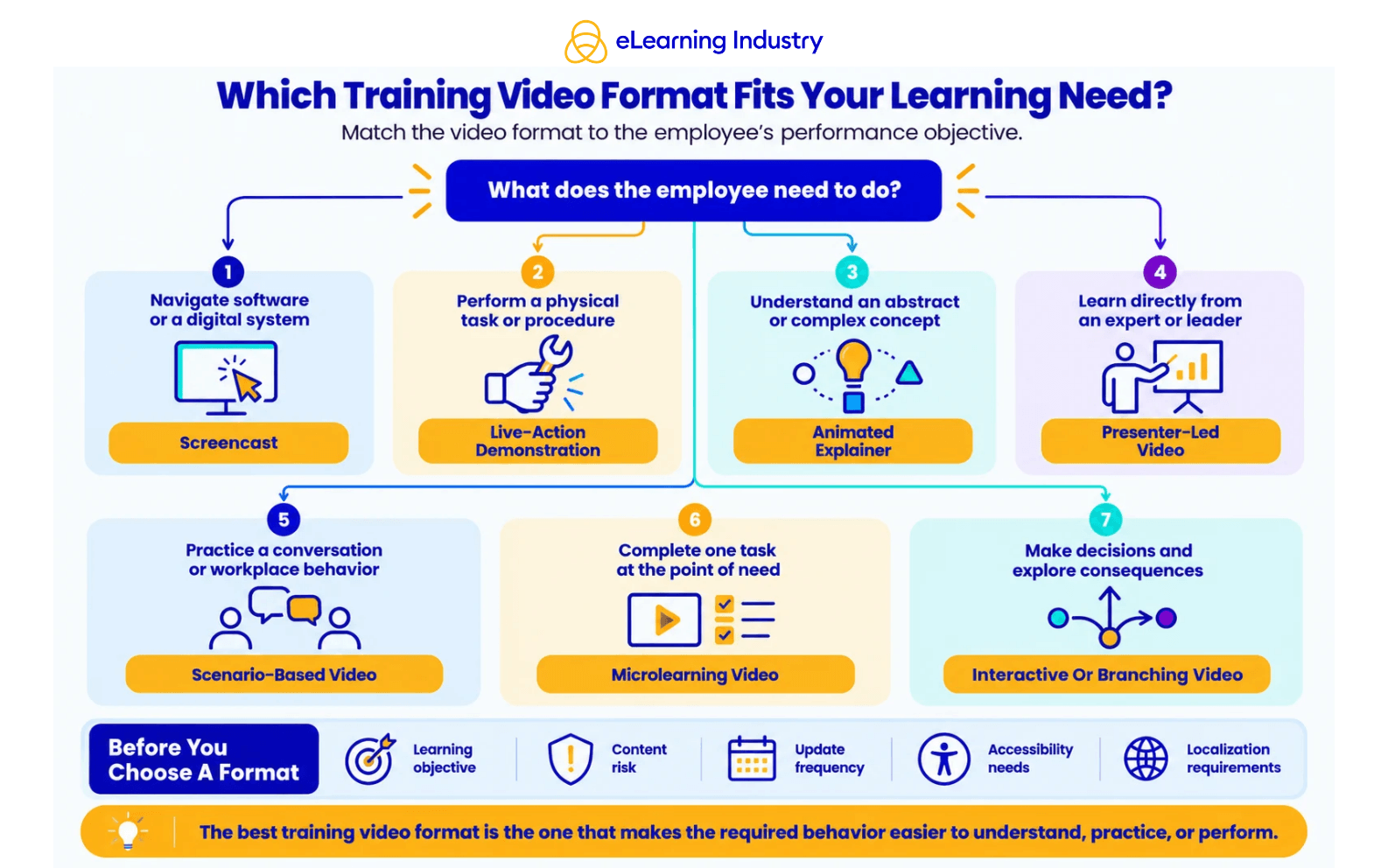
7 Types Of Training Videos And Where Each Works Best
The best format is the one that fits your learning goal. Don't let new trends or technology drive your decision.
1. Screencasts And Software Training Videos
A software training video shows what's happening on the screen while someone explains each step. This style is great for things like LMS navigation, CRM tasks, reporting tools, and other digital processes.
To make your video easy to follow, highlight key parts of the screen, turn off notifications, and move the cursor slowly and clearly. Employees should always know where to click and know why each step matters.
2. Live-Action Demonstrations
Live-action training videos let people watch safety steps, equipment use, manufacturing tasks, and other hands-on processes. Choose this format when it's important to show the right order, posture, tools, or common mistakes.
Since these videos can be harder to update, they work best for procedures that don't change often.
3. Presenter-Led Or Expert-Led Videos
A trainer, leader, or expert talks directly to the audience, often using graphics, examples, or demonstrations to help explain the topic.
This method is helpful when you need credibility, context, or a human touch. But it is less useful if the presenter just reads information that employees could read faster on their own.
4. Scenario-Based And Role-Play Videos
Scenario-based training videos show realistic workplace situations. They are especially helpful for topics like leadership, sales, customer service, ethics, inclusion, and handling tough conversations.
The best scenarios focus on real decisions and their outcomes. They should help learners think about what happened, not just watch actors go through a perfect conversation.
5. Animated Explainer Videos
Animation can help explain abstract systems, cybersecurity ideas, business processes, or anything that is hard to show with real video.
But animation should make things easier to understand. Too many moving parts, extra characters, or fancy transitions can distract employees from the main lesson.
6. Microlearning And Performance-Support Videos
These videos focus on one task, question, or decision at a time. They are useful when someone needs a quick refresher before using a system, finishing a procedure, or talking to a customer.
Shorter videos are not always better. Still, having a clear goal usually leads to a more focused and helpful video.
7. Interactive And Branching Videos
Interactive videos ask learners to answer questions, pick responses, or see what happens with different choices. This turns watching into a chance to practice making decisions.
This type of video is especially useful when good judgment is important, but it does take more planning, testing, and technical support than a regular training video.
How To Create Training Videos: An 8-Step L&D Workflow
To create an effective training video, focus on addressing a learning need rather than just making a media project. Whether you make videos in-house or manage large-scale production, this process helps keep your work tied to real performance goals.
1. Identify The Performance Need
Begin by identifying the workplace problem. What do employees need to change? What is stopping them? Is it a lack of knowledge or skill, or are there unclear processes, poor tools, mixed incentives, or not enough support?
This step helps L&D teams avoid making videos for issues that training cannot fix. It also makes it easier to measure results later on.
2. Define The Audience And Learning Objective
Write down details about your audience, such as their role, experience, what they already know, the devices they use, their work setting, language needs, and any accessibility needs. Then set a clear, observable learning goal.
For instance, saying "Understand the CRM" is too broad. Instead, "Create a qualified opportunity in the CRM using the required fields and naming conventions" gives your team a clear skill to teach and measure.
Whenever you can, focus each training video on one main goal. This makes it easier to find, update, reuse, and put into practice.
3. Choose The Format And Production Model
Pick the video format that best fits the task. Depending on your goal, this could be a screencast, a live demonstration, a presenter explaining, an animation, a scenario, or an interactive video.
Next, choose one of these three main ways to produce your video:
- Internal production suits frequent changes to software tutorials, internal processes, and subject-matter expert explanations.
- AI-assisted production can accelerate scripting, narration, translation, editing, and presenter video creation.
- Professional corporate training video production is well-suited to high-risk, high-visibility, or long-term content that requires advanced production skills.
Think about factors like how many people will watch, how risky the content is, how long it will remain useful, how often it needs updates, whether it needs to be localized, privacy, and quality standards. A fancy video is not always better for learning, but bad audio or unclear visuals can hurt even great content.
4. Write A Script For Listening And Action
A good script should sound natural when spoken. Use short sentences, active voice, clear words, and smooth transitions. Don't just read policy documents or slide text aloud.
A practical training video script follows this structure:
1. Explain why the task matters.
2. State what the learner will be able to do.
3. Demonstrate or explain the process.
4. Highlight critical decisions, errors, or exceptions.
5. Prompt practice, reflection, or action.
6. Summarize the key takeaway.
When you make a video tutorial, explain both what to do and why it is important. People are more likely to follow a process correctly if they know the reason behind it.
5. Create A Storyboard Or Visual Plan
Your storyboard does not have to be complicated. It should show the narration, what happens on screen, graphics, labels, camera shots, knowledge checks, and any accessibility needs.
For screen-based video instruction, identify where the viewer should look. For live-action production, choose camera angles that make the procedure easy to observe. For scenarios, define the decision points and consequences before filming begins.
A simple visual plan can reveal missing steps or confusing parts while it is still easy and cheap to make changes.
6. Record Clean Audio And Purposeful Visuals
Good audio is usually more important than having an expensive camera. Record in a quiet place, use a good microphone, and watch out for background noise. For screencasts, make the interface larger, move the cursor slowly, and remove any private information.
For live-action videos, keep the framing and lighting the same throughout. Encourage presenters to speak naturally rather than memorize lines. Breaking up tough sections into shorter clips can also help.
Before recording training videos, organizations should set clear rules for consent, privacy, security, and branding, especially if employees, customers, or internal systems will be shown.
7. Edit For Clarity, Accessibility, And Localization
Editing should eliminate distractions, not just add effects. Remove repeated parts, filler words, long pauses, and anything that does not help the learning goal. Use labels, highlights, zoom, and short on-screen text to show what is important.
Make sure every training video has accurate captions and a clear transcript. Also, check that text is easy to read, contrast is good, viewing time is reasonable, player controls work well, and important visuals are explained.
If your audience is global, plan for localization from the start. Changing the narration is just one step. You may also need to adapt on-screen text, examples, screenshots, interface language, and cultural references.
8. Pilot, Publish, And Improve
Test your video with a few employees before sharing it with everyone. Ask them to try the task, point out any confusing steps, explain the main message, and let you know about any accessibility or navigation issues.
Then, share the video using the right platform, such as your LMS, video training site, intranet, knowledge base, or digital adoption tool.
Finally, look at learner questions, test results, where people stop watching, support requests, and performance data. Making training videos should be an ongoing process. Update your video if employees are confused, the process changes, or if learning is not showing up on the job.
How To Choose Training Video Software And Platforms
Training video software is used to create or edit content. Delivery platforms are where you host, secure, organize, assign, search, and track that content. While some tools can do both, it's best for L&D teams to consider each function on its own.
Need |
Suitable tool category |
Capabilities to prioritize |
| Software walkthroughs | Screen recorder and editor | Zoom, annotations, cursor effects, easy updates |
| Presenter videos | Training video maker or AI video tool | Voice options, localization, brand controls |
| Animated concepts | Animation or scenario software | Reusable assets, scenes, characters, and branching |
| Professional production | Advanced video editor | Audio control, motion graphics, multitrack editing |
| Learning delivery | LMS or enterprise video platform | Permissions, search, analytics, integrations |
Choosing the right software for training videos depends on your format, your team's skills, any governance needs, and how you plan to deliver the videos. Key things to look for are:
- Collaborative review
- Caption and transcript quality
- Version control
- Brand templates
- Export options
- LMS integration
- Learner analytics
- Security and access controls
- Mobile performance
- Localization features
- Total cost of ownership
If your team wants to use free software to make training videos, be sure to consider the trade-offs. Free tools might add watermarks, limit storage or exports, and offer less support for collaboration, accessibility, or data security.
So, the cheapest option might not save money in the long run if employees have trouble updating, managing, or sharing the finished videos.
What Makes Training Videos Effective, Accessible, And Inclusive?
Good training videos focus on the information employees need to learn or use. They avoid trying to entertain if it distracts from teaching.
Keep these principles in mind:
1. Begin with a clear goal. Avoid mixing unrelated topics just to have fewer videos.
2. Break up complex topics. Use chapters, short modules, or a series so learners can pause, replay, and find what they need.
3. Show what is important. Use labels, highlights, close-ups, or cursor focus to point out key steps and choices.
4. Cut out anything extra. Long intros, fancy animations, extra music, or repeated branding can distract from the lesson.
5. Keep viewers engaged. Add questions, choices, practice tasks, reflection prompts, or quick knowledge checks.
6. Plan for accessibility from the start. Use accurate captions, transcripts, clear text, strong contrast, easy-to-use controls, and describe important visuals.
7. Support your video with the right tools. Job aids, coaching, simulations, discussions, or manager follow-up can help people apply what they learn.
There is no perfect length for a training video. It should be just long enough to meet its goal. For example, a safety demo might take longer than a quick software tip. The key is to make sure every part helps employees do their jobs.
Common Mistakes To Avoid When Making Training Videos
Most training videos that fail have problems with their design or management, not with camera quality. Here are some common mistakes to watch out for:
- Starting to record before deciding on the learning goal.
- Making a narrated video out of a full slide presentation without changes.
- Trying to cover too many topics in a single video.
- Focusing more on how the video looks than on making the instructions clear.
- Sharing videos that do not include chances to practice or reinforce learning.
- Using auto-generated captions without checking them for mistakes.
- Assuming that finishing the video means someone has learned the material.
- Displaying private or sensitive information in the video.
- Including AI-generated material without first having an expert check it.
- Posting the video without choosing someone to keep it updated.
Conclusion
Training videos are valuable when they help employees learn, practice, or perform important tasks. Start by focusing on what people need to do, pick a format that makes the task easier to understand, and make sure everyone can use it. After that, choose the right software, platform, production method, and method for measuring success to support your goal. Technology will keep changing, but your main goal should stay the same: every training video should help people do their jobs better.


